top of page

Design Comparison.
Before and After.
A direct comparison between the screens caused several user experience issues, and I redesigned the versions. A list of pages is provided below.
Click to scroll to a specific one:
1. Landing page
2. Login/Register Page
3. Exam Selection Page
4. Exam Page
5. Results Page
6. Exam Completion Page - Replaced with a Student Dashboard
7. Reports Page - Replaced by Review Page
1. Landing Page
The Original Landing Page had several clashing elements. Additionally, the Landing Page was combined with the login page.
Changes made:
- Removed the Login Section.
- Redesigned it to fit a more conventional design and match the UI style at the time. Also, the colour palette, however diverse, doesn't distract from the Menu.


2. Login/Register Page
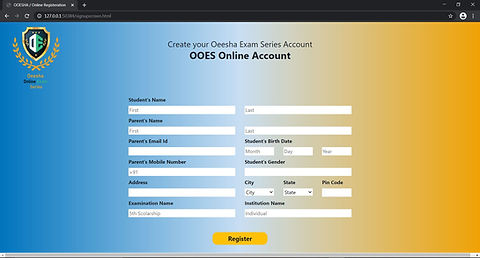
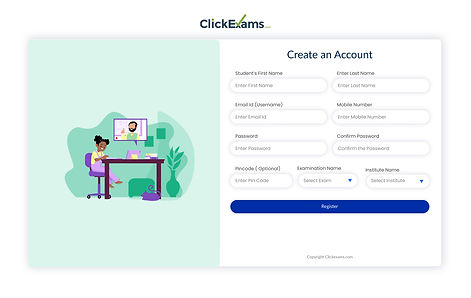
The old version of the Register page was functional, but its layout and hierarchy weren't guided by clear UI principles, and the background's colour gradient used shades that were too polarising.
Changes made:
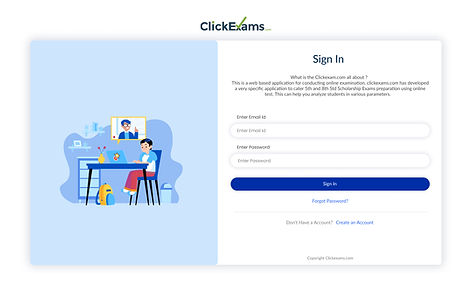
- Split Login and Registration into two distinct pages for clarity.
- Applied a consistent layout and hierarchy across both, with distinct colour coding so users can immediately tell which page they're on.
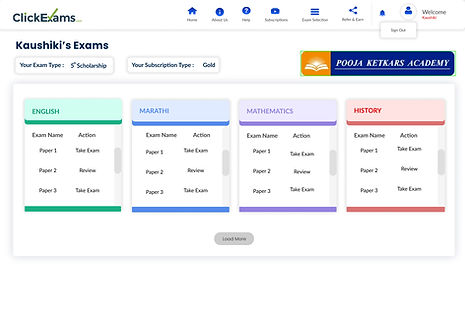
3. Exam Selection Page
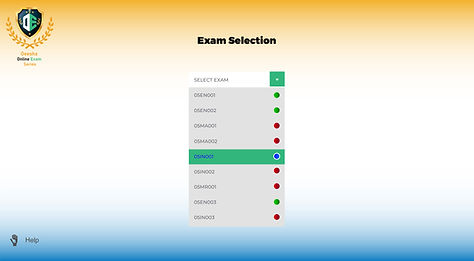
The original Exam Selection page did not use filters or separate sections for exams and the subjects the students needed to solve. It used green, red and blue to signify solved, unsolved and selected papers without explaining their meaning on screen.
Changes made:
- More information about the exams provided at a glance, including the tutor the student is associated with.
- Assigned distinct colours to each subject, giving students an instant visual cue for what they're selecting.
- Added a clear call-to-action to guide students on next steps for their papers.
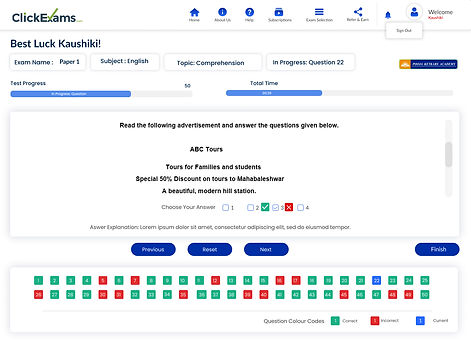
4. Exam Page
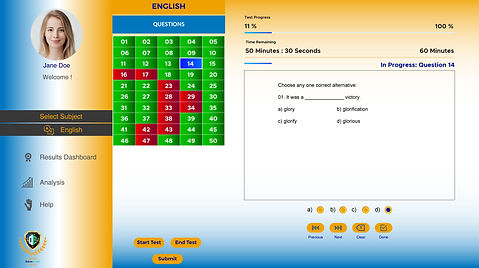
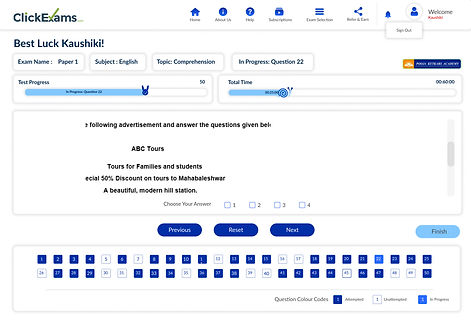
The old Exam page included a sidebar menu and then the test itself. The buttons were too big. Too many elements on the screen distracted the students. This was the most important page, yet the most distracting one.
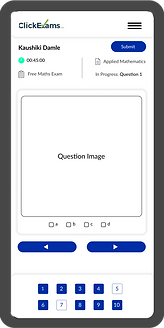
Changes made:
- Moved the menu to the top and used icons. Dedicated the entire screen to the Exam.
- Assigned a monochromatic colour scheme to all the elements to reduce distraction during the practice.
- Provided meanings of the buttons and their colours.
- Separated elements according to their function to achieve a uniform layout and hierarchy.
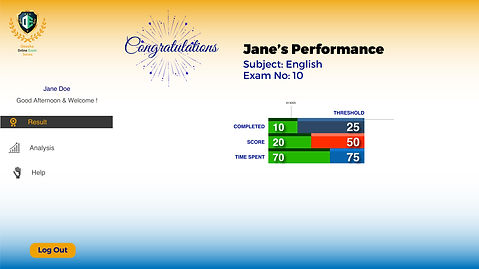
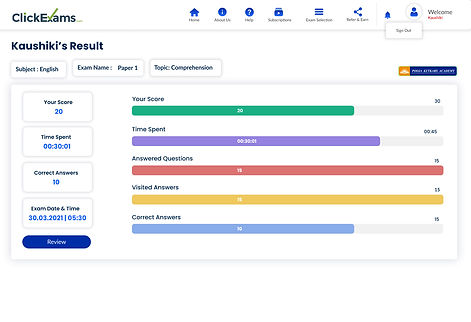
5. Results Page
The older Results Page featured another sidebar menu. The information on the screen seemed scattered on the page. The 'Congratulations' GIF seemed out of place.
Changes made:
- Added more colours to separate each parameter from the other. It provides a graphical representation with a specific colour for each parameter.
- Also, provided a more straightforward form of results for students and tutors who aren't interested in the graphical representation.
6. Exam Completion Page
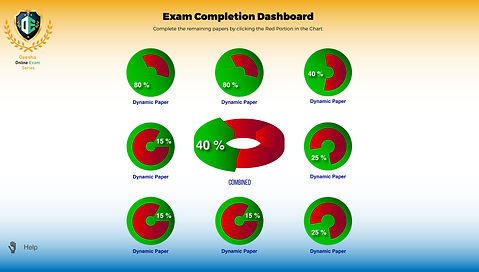
Replced with a Student Dashboard
The Exam Completion Dashboard was originally designed to show students their performance based on each paper from the selected from the 'Exam Selection' page and calculate the overall score based on all papers.
Changes made:
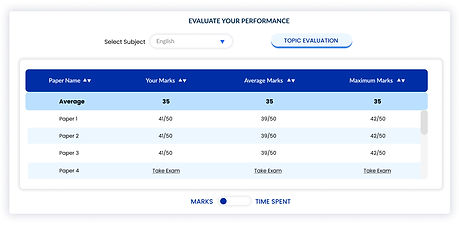
- Replaced this page with a Student Dashboard that gives students a clear idea of each paper and their overall performance at a glance.
- A student can find their completed and pending exams as soon as they log in.
- Added a table with several filters, enabling students to view their performance subject-wise and even by topic within a particular subject.
- The table view can be switched between performance based on 'Marks' obtained and 'Time Spent' on each paper.

7. Reports Page
Replaced with a Review Page
The Reports page was completely replaced by a simple Exam Review page after I suggested that the reports might suit the Tutor's side better.
Changes made:
- Introduced a Review page giving students a concise summary of their performance on each paper.
- Mirrors the layout of the Exam Screen, using colour coding to distinguish correct answers, incorrect answers, and the current question.
- Displays the correct answer as provided by the tutor who set the exam.

bottom of page